
A tenant who wants to download their receipt on a Sunday evening, a co-owner looking for the minutes of the last general meeting before a notary appointment the next day: it’s in these moments that the MyFoncia client space becomes truly valuable. However, one must have activated their account correctly and know where to find the right documents. This guide covers the concrete situations that Foncia clients encounter daily, from unlocking a first connection to tracking a complaint.
Official address and MyFoncia phishing trap
Before even discussing the identifier, one point deserves attention. The official connection address for MyFoncia goes through the domain my-foncia.fonciamillenium.net, which resembles a fraudulent site more than a property management platform. This domain name regularly surprises new users.
Phishing attempts circulate via email with links that imitate this URL. To avoid any confusion, it is recommended never to click on a link received by email to connect. Type the address directly into your browser or go through the official site fr.foncia.com. If you want to manage your Foncia account online securely, always check the address bar before entering your credentials.
MyFoncia account activation: the double validation that blocks most users
The first connection procedure involves two successive email validations. This is the point where many give up, thinking their account is active after the first confirmation. It is not.
Finding your first connection identifier
The provisional identifier is not your email address. It appears on a different document depending on your profile:
- Owner landlord: on the last management report sent by your Foncia agency
- Co-owner: on the last call for funds, usually in a box at the top of the document
- Tenant: in the welcome email received upon signing the lease (check your spam if you can’t find it)
If you have lost this document, the customer service of your agency can resend it to you. Expect variable delays depending on the agencies, as responses vary on this point.
The concrete steps for activation
Go to the first connection page and enter the provisional identifier. The system sends a first confirmation email to the address registered in your client file. Click on the link in this email.
You will be redirected to a page where you set your email address as a permanent identifier and create a password. The password must contain at least six lowercase letters, one uppercase letter, and one number. A second validation email will then arrive to confirm the final creation of the account.
Do not close the page between the two emails, or you will have to restart the procedure. If the email address displayed during the first step is not correct, contact your agency to correct it before proceeding.
Documents and financial tracking in the Foncia client space
Once logged in, the MyFoncia interface adapts the visible tabs to your profile. A co-owner sees the minutes of general meetings and calls for funds. An owner landlord accesses management reports and adjustment notices. A tenant finds their receipts and rental balance.
Downloading accounting documents
The “My Documents” tab groups the files sorted by category and date. The documents remain available for download for several years, which avoids having to request duplicates from the agency.
For co-owners, the digital provision of condominium documents on the extranet meets a regulatory requirement. This covers AG convocations, minutes, accounting annexes, and multi-year work plans when they exist.
Reading your financial tracking
The dashboard displays the account balance in real-time. You can see the calls for funds issued, the payments recorded, and the details of charges. For owner landlords, the rents received and management fees appear line by line.
Three online payment methods are offered directly from the client space: direct debit, credit card, and bank transfer. Direct debit remains the most reliable method to avoid reminders related to missed payments.
Tracking complaints and service requests in MyFoncia
The client space includes a ticketing system for tracking requests. Each complaint or intervention request submitted through MyFoncia is timestamped and linked to a dedicated tab with a visible status: received, in progress, or processed.
This traceability changes the game compared to a simple exchange of emails. If your agency is slow to respond, you have a dated proof of your initial request. For claims, the interface allows you to attach photos directly from the mobile app.
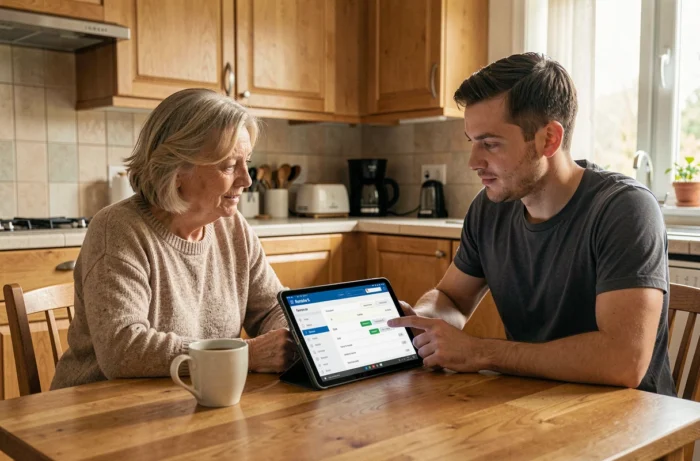
MyFoncia mobile app on iOS and Android
The app replicates the functionalities of the web version: account consultation, document downloading, request tracking, and online payment. Access is available at all times, which resolves the classic issue of needing to provide a document urgently on a weekend.
One point to note: the credentials are the same on the app and the website. No need to create a separate account. If you have activated your online space, the app works with the same access.
Blocked connection to MyFoncia: common causes
Several situations prevent connection without the error message being explicit. The most common: using the provisional identifier after already activating the account. Once activation is done, only your email serves as the identifier.
- Forgotten password: the reset page sends a link by email, valid for a limited time. If the link expires, restart the procedure
- Incorrect email in the client file: the agency must manually correct the address before any attempt
- Account never finalized: if you have only validated the first of the two emails, the account does not exist yet. Restart the procedure from the beginning
Managing a Foncia account online requires rigorous activation and a good understanding of the interface according to one’s profile. The double validation system remains the main obstacle to entry, but once this step is passed, the client space covers almost all common needs without going through the agency.